
What does feed optimization change?
A stale availability value can block one of your shoe sizes before its title gets a chance to match a query. Check eligibility in your catalog first, then matching, click appeal, and performance grouping.
Google says product data matches products to queries and supplies information for AI-powered formats. Incorrect or missing data can cause disapproval, limited eligibility, or the wrong product information to appear.
One row carries four jobs
| Question | First surface | |
|---|---|---|
| Eligibility | Can your item serve? | Merchant Center status |
| Matching | Which searches fit? | Search terms and item impressions |
| Click appeal | Why would someone choose it? | Item CTR |
| Commercial control | Where should you group value? | Product reports and labels |
Imagine your catalog has a blue trail shoe in three sizes. A stale availability value can block one size, while a vague title can leave an approved size with weak query coverage.
Your item status therefore explains why a Google Shopping ads report can't diagnose every feed problem.
Search Engine Land argues that richer product records now matter across paid listings, organic product surfaces, and AI shopping experiences. Search Engine Journal says Google builds AI Mode ads from your Merchant Center feed, so vague product data gives Gemini less to work with.
Match each Google Shopping feed field to one job
The issue signal tells you which feed field produced the bad result. Match it to one job in the catalog record, then trace the failure back to its source value. That keeps you from editing the whole feed at once.
Standard online offers require ID and link, along with an image link, availability and price. Google accepts a plain or structured title. You can use the same two formats for the description. Your category, market, or destination may add required fields.
Change the field that owns the status
shopping-feed.tsv / one fictional variant
title: 'Northstar Trail Shoe Blue Size 8'
product_type: 'Footwear > Trail Running Shoes'
1gtin: 'seller-created value'
price: '89.00 USD'
availability: 'in_stock'
2merchant_center_status: 'not approved / invalid GTIN'
# decision: replace only the invalid identifier
3gtin: '[manufacturer-assigned GTIN]'
4merchant_center_status: 'review required'
- The title, taxonomy, price, and availability stay unchanged.
- The seller-created number is removed from the product record.
- Merchant Center review comes before any traffic conclusion.
Your ID should stay stable across updates, and Google caps it at 50 characters. If you reuse an ID for another item, your old reporting history can attach to the wrong product.
| Field | Job | Failure signal | Your check |
|---|---|---|---|
| id | Stable item identity | Broken continuity | Unique and unchanged |
| title | Product identity and matching | Vague search exposure | Exact noun and buying attributes |
| product_type | Your reporting taxonomy | Unusable groups | One durable hierarchy |
| gtin | Manufacturer identity | Identifier issue | Packaging or brand record |
| price | Payable offer | Price mismatch | Feed, page, and checkout agree |
| availability | Stock promise | Availability mismatch | Variant inventory agrees |
| image_link | Primary product view | Crawl or policy issue | Exact variant is visible |
| custom_label | Business grouping | No useful segmentation | Margin or lifecycle bucket |
GS1 defines GTIN as an identifier for trade items. Google says an incorrect GTIN can disapprove a product, while a missing known GTIN can restrict product performance.
For example, your blue size 8 shoe needs its own ID and landing URL. Its color and size variants share one item group ID when they belong to the same product family.
Your storefront must carry the same price and availability through the product page, structured data, and checkout. You also need that alignment for ecommerce SEO.
Start your feed field workflow from item data, and check the same values in a daily catalog audit. If your process conflicts with Google's current specification, follow the specification.
Build Google Shopping feed titles from accurate product data
One job comes first for an item's title data. It should identify the product your shopper can buy before secondary details. Google allows up to 150 characters and asks you to match the title on the landing page.
Google does not publish a ranking effect for title field order, keyword placement, or product type depth. Test the product noun earlier in your titles on one category first.
Separate rules from test ideas
| Published rule | Test idea | |
|---|---|---|
| Length | Maximum 150 characters | Compare shorter buying details |
| Accuracy | Describe the landing-page item | Try the product noun earlier |
| Variants | Include distinguishing color or size | Test attribute order by category |
| Taxonomy | Use your own product type value | Test durable reporting depth |
Say you're testing the title of a 14-inch recycled-leather laptop sleeve. Test Laptop Sleeve 14 Inch Recycled Leather Black against the title currently used for that product.
You shouldn't add promotion text or repeat phrases. You'll also want the landing page to open the same variant that the title names.
Your product type is optional and uses your own taxonomy. Google recommends the full category path. Google uses only the first product type value for Shopping campaign bidding and reporting organization.
You'd use Footwear > Trail Running Shoes to group a category you'll still be using next year.
-
1. Name the purchasable item
Use the noun your shopper would recognize. Don't begin with a campaign slogan.
-
2. Add deciding attributes
Start with material, size, and color. Add model, gender, or compatibility when those details change the item.
-
3. Check the landing variant
Open your URL and confirm that it matches the title. You can't test a title against the wrong default variant.
-
4. Preserve manufacturer identity
Keep your brand and GTIN tied to the physical product. Don't invent an identifier.
-
5. Mark the product cohort
Record which items receive the title change. You'll need that cohort when you read results.
Keep title work behind eligibility checks, and change one thing at a time. In your title test, separate compliance from merchandising, then control the feed change within one marked cohort.
The same brand, GTIN, and variant identity works across Performance Max and other retail surfaces. Your Performance Max versus Standard Shopping choice changes campaign control without fixing the underlying product data.
What does weak Google Shopping feed data cost?
When weak product data breaks eligibility, the item disappears from the affected destination. If the item remains approved, vague data can still waste useful exposure or attract the wrong click. Estimate the loss at the stage where it failed.
The cost depends on the field you changed and the demand it affects. Item eligibility, auction conditions, margin, and stock also matter.
Read cost at the broken stage
| Visible symptom | First business loss | |
|---|---|---|
| Not approved | No delivery in the affected destination | Eligible inventory |
| Limited | Restricted contexts | Available reach |
| Approved with vague identity | Thin query coverage | Useful impressions |
| Accurate match with weak image | Low item CTR | Qualified clicks |
| No commercial labels | Blended reporting | Margin control |
An out-of-stock red variant in your catalog shows why the row matters. The image, title, price, and availability must all match that purchasable item.
Google's 2026 update says a 500 by 500 image minimum becomes enforceable on 31 January 2027.
Google allows up to 10 additional image links, and the primary image must represent the submitted product. You can add extra angles for context, for example a sole view, as long as shoppers can recognize the submitted product.
A 2026 Search Engine Land case followed one large ecommerce brand after it added a separate organic product feed. Product-level test revenue rose 92%, visibility rose 83%, and add-to-cart activity rose 14%.
Search Engine Land recorded 35,000 impressions at a 1.4% CTR, reported as 55% higher than paid. Use those figures to set a test range for a similar product group.
Producthero studied 1,471 products over four months in 2025 and reported an 11% CTR increase with a 5% ROAS increase. Start with that combined setup, then hold all but one field steady in your own test.
Use those cases to shape your hypothesis, then set your prices with item-level economics and your own return on ad spend threshold.
Shopify also advises merchants to keep product identifiers and data ready for AI shopping surfaces. If Shopify owns your source record, fix it there because the next sync can erase your manual edit, and use that same upstream record for Shopify SEO.
Diagnose Google Shopping feed issues by product
Looking only at the account average won't show you which product broke. Trace one affected item from its submitted value to the destination value, then identify the source owner before you edit the feed.
Google separates warnings from disapprovals. A warning can restrict performance, while a disapproved product can't show in the affected destination.
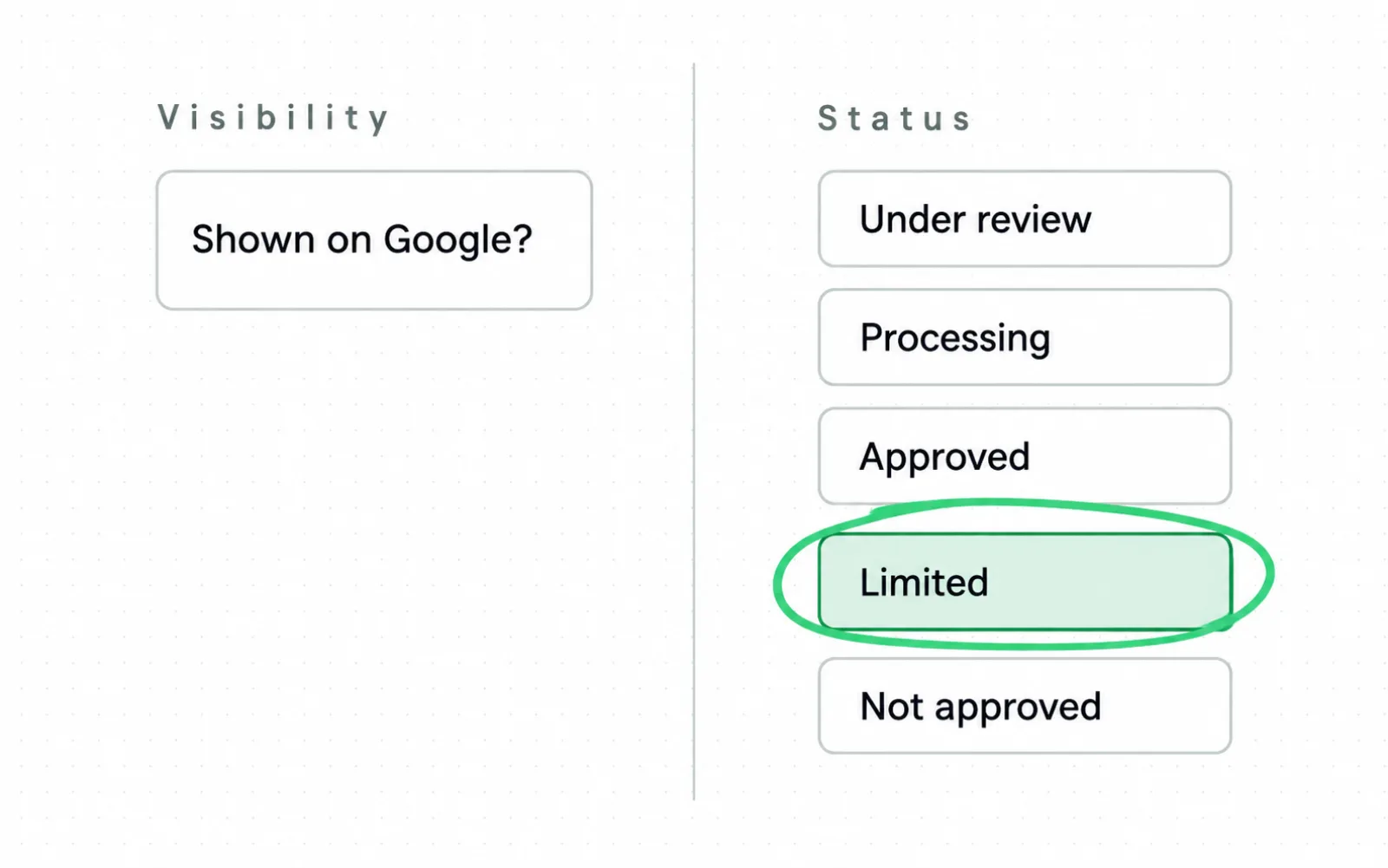
- Visibility tells you whether the product is being shown on Google.
- Status tells you whether the product is approved to show. Google lists Under review, Processing, Approved, Limited, and Not approved.
-
1. Open Needs attention
Start with your item-level issue list. Don't begin from account ROAS.
-
2. Read the issue scope
Check the destination, country, and affected items before you choose a fix.
-
3. Inspect one item
Compare your submitted value with the landing page and checkout.
-
4. Find the source owner
Trace the value to your store, app, feed rule, or supplemental source.
-
5. Fix the upstream record
Fix the value in the system that owns it so your next sync doesn't restore the error.
-
6. Watch the product state
Wait for processing and review before you judge delivery.
Compare the submitted value with the product details on your page
| Submitted value | Destination truth | Your next check | |
|---|---|---|---|
| Price mismatch | 89.00 USD | 99.00 USD | Page and checkout |
| Availability mismatch | in_stock | out_of_stock | Variant inventory |
| Invalid GTIN | Seller-created value | Manufacturer identifier | Packaging or brand record |
| Image crawl issue | Blocked URL | No fetched image | Exact image URL |
| Policy issue | Submitted offer | Destination content | Issue policy page |
Suppose your catalog puts 40 variants under one price rule. Six have an issue, so you should compare those product URLs with approved siblings before you rewrite all 40 rows.
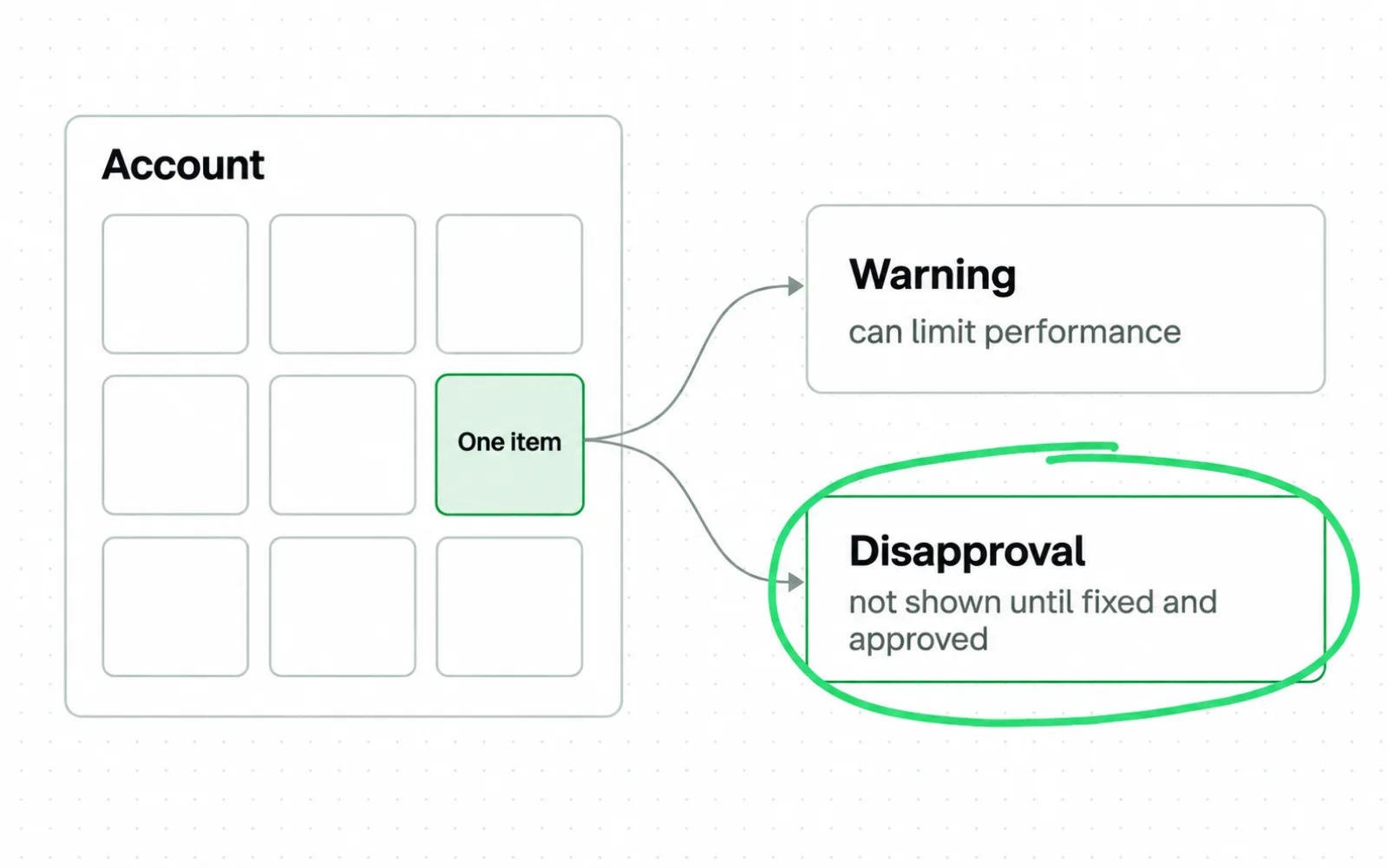
- Google says a product-level issue affects an individual item instead of the entire account.
- Warnings can limit performance. A disapproval stops the product from showing until the issue is fixed and the product is approved again.
Merchant Center can prioritize high-impact issues and hide lower-impact entries behind a filter. You can turn off prioritization when you need the complete issue list.
Processing means Google is handling your update, and under review means the item is being checked. Limited means your item can show in fewer contexts, while not approved blocks the affected destination.
Run the issue through your feed quality checks. Your feed change starts with a submitted value that does not match your real stock or price.
Test one feed change at a time
Merchant Center processes your submitted value before review begins. Review, reporting, and shopper response follow on separate clocks. Record all four before you treat a submitted feed change as a performance result.
Four clocks after your edit
- 1 Processing Did Merchant Center ingest your new value?
- 2 Review Did your item status change?
- 3 Reporting Did the event reach your metric surface?
- 4 Performance Did behavior change under comparable demand?
Google says traffic metrics usually arrive within three hours, while most reports use a one-hour service-level objective. Conversion data can take longer because its delay depends on the attribution source.
In June 2026, Google expanded product-level reporting to Performance Max, Standard Shopping and Demand Gen as well as video and app campaigns. You can now follow one item beyond its Merchant Center status in more campaign types.
| Question | First surface | Your proof |
|---|---|---|
| Was the value ingested? | Merchant Center item | New submitted value appears |
| Was the issue resolved? | Needs attention and status | State changes after review |
| Did visibility move? | Product reporting | Comparable item impressions |
| Did matching move? | Search terms and item data | Query mix changes |
| Did click appeal move? | Item or cohort CTR | Comparable impressions accrue |
| Did economics move? | Conversions and value | Buying cycle and lag mature |
Enrich trail-shoe titles in your catalog with terrain terms for one stable cohort. Leave bids, budgets, and images unchanged during the comparison window. Freeze promotions and landing-page edits too.
Use a control cohort with similar stock and demand for a stronger comparison than a week-over-week check.
-
1. Name your cohort
Record the item IDs and the source system you will change.
-
2. State your mechanism
Choose eligibility, matching, click appeal, or commercial control.
-
3. Freeze competing edits
Freeze bids, budgets, and images. Keep offers and titles unchanged too.
-
4. Mark ingestion
Record when the new value appears in Merchant Center.
-
5. Mark the item state
Record when review ends or a limitation changes.
-
6. Read your chosen metric
Start with status, impressions, and query mix. Add CTR, conversion rate, or value when you reach performance.
-
7. Segment business value
Read the result against margin, stock, and product lifecycle.
Run a title-cohort test with separate variants and frozen competing edits. Semrush says complete, consistent product data gets your store into search and AI results. Keep Product schema and Merchant Center in sync so price and stock stay consistent.
If you also run Google Ads remarketing, exclude that traffic from your title-test result because it changes the mix.
If your catalog is too large to audit and fix by hand, our Google Shopping management can run this process across every item. For campaign and measurement ownership beyond Shopping, see our Google Ads management.
Use how Google Ads works to keep bid and demand changes separate from your feed result, such as when a budget change moves impressions during your title test. Measure the product record after processing and review are complete.
Google Shopping feed questions
Open your product record before you answer a common feed question for that item. Check its source value, item status, matching evidence, and performance in that order.
Don't diagnose profit from an item in your catalog while it remains under review. You also shouldn't diagnose title quality from a product blocked by a price mismatch.
Route the question to the right surface
| Start here | Then check | |
|---|---|---|
| Can it show? | Merchant Center status | Destination eligibility |
| What can it match? | Title and identity fields | Search terms and impressions |
| Why did someone click? | Image, title, and price | Item CTR |
| Did the edit work? | Processing and review | Controlled cohort result |
You can inspect data sources and products in Merchant Center. When an app owns the source, you should inspect that upstream record too because your local edit can be overwritten.
When you compare ChatGPT shopping versus Google Shopping, keep price, availability, and product identifiers consistent across both discovery systems. Use one product record as the unit you inspect and test.
Sources
- Google Merchant Center Help Product data specification
- Google Merchant Center Help 2026 Merchant Center product data specification changes
- Google Merchant Center Help Issues in Merchant Center
- Google Merchant Center Help Check product visibility and status in Merchant Center
- Google Ads Help About data freshness
- Google Ads Help About product reporting
- GS1 Global Trade Item Number
- Search Engine Land How Google Universal Commerce Protocol changes ecommerce SEO
- Search Engine Land Why product feeds need an organic strategy for AI search
- Search Engine Journal How To Advertise In Google AI Mode For Ecommerce
- Semrush Ecommerce Marketing: 10 Strategies for Search and AI in 2026
- Semrush Ecommerce AI SEO: How to Optimize Online Stores for LLMs
- Channable Interesting ways agencies are optimizing clients Google Shopping feeds for success
- FeedOps Google Shopping Feed Optimization Guide
- Store Growers Google Shopping Feed Guide
- SKU Analyzer Merchant Center Feed Optimization
- SKU Analyzer Google Shopping Product Title Optimization
- Producthero Comparative analysis of Products AI and CSS
- Shopify Google AI Shopping: What Merchants Need to Know
- DataFeedWatch A B Testing Google Shopping Product Titles
Questions people ask
What is Google Shopping feed optimization?
You keep each item eligible for the auction and accurate enough to match the right searches. Make its title and image earn the click, then use product-level reporting to test whether your source or merchandising change worked.
Which Google Shopping feed fields are required?
Standard online offers require ID, link, and image link. They also require availability, price, title, and description. Title and description can use structured versions. Your category, market, or destination may require more fields.
Should I put keywords first in product titles?
Test the product noun earlier on one category first. Keep the title accurate, include attributes that identify the purchasable variant, and compare the result with your current title.
How do I fix Merchant Center disapprovals?
Open the item-level issue and compare the submitted value with the product page and checkout. Find the source owner, fix that upstream value, then wait for processing and review.
How do I measure a feed change?
Choose one cohort and one mechanism. Record ingestion and item status first. Then read impressions, query mix, or CTR. Move to conversion rate or value after comparable demand has accrued.